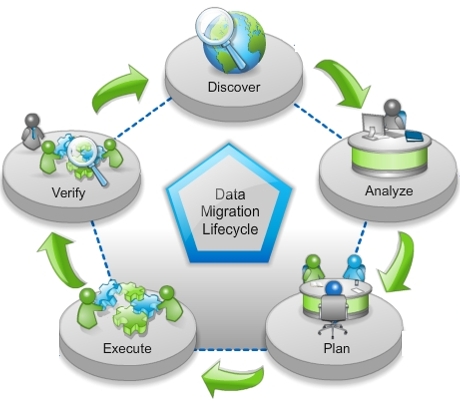
Historical Data Migrations From Old to New Platforms.

Historical Data Migrations From Old to New Platforms.

Data migrations can go awry for many reasons, however, most often these bad situation scenarios can be avoided with consultation with CCS Retail Systems Support and some careful planning.

Here are some recent examples.

  1. Data Migrations where corrupt data is present.

An IT person did an in-house test migration to a newer NCR Counterpoint software version. The company preferred to not purge history regularly. There were some known corrupt data records complicating the procedure. The company had some history that was over 10 years old. (A recommended policy is to try to keep 3 years of history at a maximum.)

The IT person planned to start the upgrade on a Friday night and complete it by the following Monday morning. This approximately 48+ hour time frame would be very aggressive when considering the scope and complexity of the conversion.

  1. Trying to using the current software on antiquated hardware and unsupported antiquated operating systems.

Attempting this sort of migration can be a recipe for disaster because damage to your data could occur from system architecture and software limitations.

For example, a business owner copied his current updated software installation onto an old server running an older, unsupported operating system. The performance of the software was then extremely inadequate for the task. Program completion times were decreased by as much as two orders of magnitude from current systems available.

  1. Some things that you can do to prevent the above-referenced scenarios are:

1. Verify that existing hardware, operating system, and software infrastructure meets or exceeds the minimum requirements for the new software. This should be considered mandatory

2. Get proper training on the new software in advance of doing either a test migration or a live migration.

3. Read all of the documentation related to the entire data migration process.

3. Plan to do a thorough test migration, This would include having end-users replicate normal processing work that represents a least several days’ worth of live data that was done in their old system.

4. Schedule CCS Retail Systems Support to do the entire data migration or provide your organization with assistance on the migration project.

– John

Recovering From a Ransomware Attack

Recovering From a Ransomware Attack

Ransomware attacks are on the rise. It is getting more common to get random emails with subjects indicating they are package tracking, voice mails, photo edits, and so on. Many of these are attempts to get you to take the bait, click the link, and ultimately install ransomware. Much has been written about recognizing malicious emails, not opening mail from unknown users, and other good advice. What happens, however, if you are unfortunate and do get hit with ransomware?

We are assuming this is a true Ransomware infection, where an active payload of malware has been added to your system. Another type of Ransomware is Scareware masquerading as Ransomware. This latter Ransomware has no payload but threatens you with data encryption as well. It is best to assume any Ransomware threat includes a payload, at first. A safe mode reboot investigation can help you check if a payload is active. If the infection is just Scareware, you may be safe with a reboot and comprehensive malware scan to confirm there is no infection active.

First, be very suspicious of any unusual activity. One of the first signs, even before the ransom notice pops up, is that programs will stop working, or documents will disappear. This activity is due to the malicious software starting to encrypt your files. If anything like that happens, take immediate action. First, disconnect your computer from your network. That is, physically disconnect the network cable, or if you use a wireless connection, turn it off. Also, immediately shut down your computer. I do not usually advocate just turning off the power, but this is one time that it is not a bad idea. The idea is that if ransomware has started on your system, to limit the damage occurring.

Try to start your computer in safe mode, and begin investigating. Make sure you lookup entering safe mode in Windows on your version to MAKE SURE you do NOT get a normal boot or the Ransomware will be active again. Check for those programs or documents that suddenly disappeared. If there is a file with the same name, but the extension has changed, most likely ransomware is the culprit. In that case, be prepared to do some research, and possibly still lose some work. It depends on the active Ransomware variant since some have been Ransomware payloads have been cracked and there are recover utilities available.

Other Ransomware payloads do not have removal utilities, and you will have to go to your back copies. Before that, however, you need to make sure that the machine is cleaned of the ransomware programs or your system will be reinfected and you will need to start over again. If utilities exist to clean the Ransomeware for your system, they should be used immediately. If not, a lot of digging and experimenting will be required. If there is no cleaning utility you may need to reformat the infected drives, reinstall the operating system, and then restore from a full image backup, NOT just a file backup. In either case, spend a lot of time checking your system, before putting it back on your network and getting on with your work. You want to be very, very, sure that the Ransomware is gone, or you will be exposing the rest of the computers on your network to Ransomware infections.

Recovering from Ransomware is a critical task that can be very complex.  This blog is just a simple overview.  We recommend you contact CCS Retail Systems Support for further guidance and services to ensure the Ransomware is properly eliminated from your systems. Remember that if you comply with the Ransomware demands there is NO guarantee that your payment will result in any recovery of your system.  The best course of action is to defeat the Ransomware request NOT honor it.

Dave.

Purging Distributions

Purging Distributions

As you use your Counterpoint SQL system, you will accumulate data. Sales history, purchasing, and receiving, all of the history is accumulated, and these tables can grow to be quite large.

One table that can grow very fast, is the distributions table. Everything that is posted will create distributions. Depending on the settings used, it can be many records for a single posting. In a short time, this can build into thousands, or millions, of records. Moreover, most people do not need most of the data in this table. If your interface to another accounting system, once the distributions are sent to that other system, one really has no need for them in Counterpoint. Also, many do not use the accounting function, either within Counterpoint, or interfaced to another accounting system. In that case, those records are never used and are just taking up space.

Fortunately, distributions are one of the areas that Counterpoint has a purge function. From the main menu, it is under System -> Accounting -> Utilities -> Purge Distributions. Under the event tab, select the Post Date range that you want to purge. You may have to use the customize function to find the post date option. Make sure that you select a range that will leave any records that you may want. In a lot of cases, leaving 30 days of distributions is appropriate. However, that will vary, depending on your use of these records, and your needs. You may be able to purge all records (for example, if you do not use any of the distribution information within Counterpoint).

Once you have selected the purge range and selected the purge option, you will get a report of the records that will be purged. Also, you will be asked for confirmation that you actually wish to purge the records. Once you confirm that you want to purge, the records will be removed. This can take several minutes, depending on how many records you are purging at a time. That is all there is to it.

Dave.

 Tis the season to be stormy…

 Tis the season to be stormy…

With the fall season upon us, so comes the inclement weather. This month has been a reminder of just how volatile these storms can and just what kind of havoc power issues can wreck on a business.

Why are proper system shutdowns important?

While using the proper system shutdown commands during power events, or when otherwise required, may seem to be Computer 101 level procedures to some, to others, especially the untrained it is not.

Based on my experience, this seems to be a bigger issue with retailers than any other group. The core issues seem to reside primarily in the following four areas:

1. Lack of written plans and/or procedures for shutting-down and restarting servers and POS systems.

2. Lack of a training program for employees working in the stores, so that they know what to do when the power goes out.

3. High employee turnover. – New staffers are either not familiar with the system, and who have little or no training.

4. Insufficient security authorizations – some of the staff at the store have a level of security access that does not allow them to login to the server and properly shut it down.

What happens when equipment is not shutdown properly?

When an application server or POS workstation is shutdown improperly, very serious issues can result, such as:

  • Loss of active unsaved data. – This might mean incomplete, and un-editable tickets, or orders.
  • Critical damage to application databases that can require having to restore data from backups.
  • Damage to the operating system, which might require having to restore part of it or having to go as far as restaging the entire computer. This would be especially true if a downloaded Windows Security Service Pack was to schedule to be installed on the next system shutdown, as it could cause the update to fail to be properly applied.
  • Physical damage to critical components in the computer, such as the hard drive, motherboard, memory, required the machines) to be down for an extended period of time Proper Power Protection

One common oversight regarding computer installations is not having proper power protection for the systems. Normally, one should have UPS (Uninterruptible Power Supply) battery backups that are adequate to protect your Servers and PC’s, as well associated hardware such as modems, network switches, etc. CCS also recommends this for both new and existing systems.

Most current UPS systems allow for line conditioning, surge and brownout protection, as well as automated Server/PC shutdown capability (in the event of a complete power failure). One historical example of this involved the following:

With a new system purchase, where the customer opted not to purchase a UPS for the primary CP SQL application server. This was mainly over budgetary concerns. During a particularly bad seasonal winter storm, they were having both erratic power fluctuations combined with complete outages for extended periods of time. The staff chose to leave the server running during this time period. At one point, the power went out several times while the server was powered up, causing the server to crash and then reboot repetitively. These events resulted in damage to some critical operating system files. The resulting support work required to recover the damage was almost equal to the cost of the originally quoted UPS.

Being a firm believer in this technology, I also have my home Computer, Monitor, External Hard Drive, DSL Modem, Alarm System, and Telephones protected.

Recommended Power Protection Updates

One common oversight regarding computer installations is not maintaining power protection for a network, location servers or registers/PC’s. The following are some often neglected things.

  1. Old and Damaged Power Strips.

Often while on-site at various companies, I find power strips that have no power or surge protection. Often there are many that have surge protection, however, the surge protection components have failed. The normal indicator of a damaged power strip is that the rocker switch light and/or the surge light is flickering off and on or burnt out completely.

  1. UPS (Uninterruptible Power Supply) maintenance.

Under normal circumstances the battery in a UPS battery backup needs to be replaced every 3 – 4 years. Failure to do this can result in systems crashing because the battery won’t hold a charge or the battery drains before the machine can be properly shutdown (in wither automated or manual fashion).

Despite its design and intended use, a UPS is not damage proof. Since it is an electronic device under heavy usage or extreme power events, it can sustain damage or fail completely.

I have seen some instances of where the UPS charging circuit has been damaged causing the UPS to overcharge the battery, both damaging the battery, and causing the unit to overheat. A common indicator of this is the UPS is extremely hot to the touch (enough to warm coffee, a pastry or burn you). This is also a fire hazard, so this situation could be putting much more than just your computer at risk.

Also, If PC’s and peripherals have recently been replaced, the older UPS may not be adequate for the job because it doesn’t have the proper wattage and amp rating to support the new equipment.

An example of this: A user had a PC connected to and older 180 Watt/230 VA UPS, and the new equipment that was installed used a combined total of 500 Watts. When the power to the UPS was disconnected, the UPS couldn’t handle the load, and immediately terminated the power before anything could be shutdown, resulting in damage to both data and the operating system.

While you can purchase a UPS for a relatively nominal fee, cheaper retail UPS units are inadequate for the job of protecting most business systems. Most new business class “Smart” UPS systems allow for line conditioning AVR (Automated Voltage Regulation), surge and brownout protection, as well as automated Server/PC shutdown capability (in the event of a complete power failure). This takes the burden of doing this away from your staff, and ensures that equipment is properly shut-down

With the fall storm season already upon us, right now is the best time to address these issues before they become critical. CCS can evaluate your needs, make recommendations, and make sure that the proper equipment is both ordered and properly installed. Please call the CCS Retail Systems Support Department to schedule your power review.

– John

Be Safe, Not Sorry

Be Safe, Not Sorry

An acquaintance of mine, who is a creative device engineer, has been using his laptop in his office to develop his designs. He has put years of effort into his work and likes the convenience of using his laptop “on the fly” when he gets a creative thought that he needs to record.

Last week, the shop was burglarized and the laptop was stolen. Although the thieves were caught the very next day, when the laptop was recovered, the designs stored in it were over-written with computer games.

Sadly, everything was lost because he hadn’t taken the time to set up a backup system, even though he had been told to do so countless times. Nothing was recoverable.

There are many options available for backup, including copying to an external drive or sending your backup to a remote, cloud-based server for storage. Cloud storage services like Dropbox or Google Drive are also available for those who want to use them. Which option you choose depends on what it is you want to back up—your entire system, certain devices, files and folders, or your entire hard disk.

Remember that there are many events that can affect your precious information. Fires, floods, tornados, earthquakes, random-ware, power outages, hardware or software damage, and theft. Although we all like to think that these disasters can’t happen to us, they can. Being prepared for a catastrophe will eliminate the agony of reconstruction.

If you have backup questions, we are here to help you. Give us a call at 425-672-4806 or email us and we can help you with solutions to keep you safe, not sorry.

Marlene.


About Support Requests

About Support Requests

At CCS, we provide support to customers who have a single site with few employees, or multiple sites with many employees. Different issues can occur at any one of these sites, and sometimes at the same time. Keeping track of these issues involves assigning support ticket numbers to avoid duplication of services and duplication of billing.

It helps us to provide better (and faster) service if you supply the following information when you first request support help:

Your name

The name of your company

The specific location where the issue is happening

Your telephone number (office, cell, or any other number where you can be reached if a call back is needed)

A brief description of the problem, such as:

· Labels are not printing right

· Problem with overnight processing

· Credit card settlement problem

· PC fan is making noises

· Error message “not able to access top level directory”

· Drawer won’t open

· Question on reports

These details, when provided at the time of your call, will be placed on a numbered support ticket, and assigned to the available tech who is most suited to resolve the issue in a timely manner. A more detailed explanation of the issue can be given to the tech once you are connected.

Following the above procedure will resolve support issues faster, and will help reduce your stress and your down time.

Have a problem or a question? We can be reached at 425-672-4806, or you can email us.

Marlene

How To Get Support Help Faster

Placeholder ImageI often find voice mails first thing in the morning from customers who are having a problem. Sometimes the problem is enormous, sometimes it is trivial, but always of concern to the person having the problem. We understand that, and want to help you as quickly and efficiently as is humanly possible.
 
Sometimes, however, the voice mail message doesn’t give us the information that we need to have. Here are four factors that hamper a quick response:
The person is speaking too rapidly for the listener to decipher what is being said. Sometimes this happens merely because the person is frustrated with the issue at hand.
 
  • Little (or no) information is given about the nature of the problem. Is it a log-in problem, a printer problem, a scanner problem, a credit card processing problem, an email problem, a system crash? A brief description of the issue helps to speed your request to the appropriate tech.
  • No call-back number is given. Yes, the tech might have your number, but are you calling from home, the office, your cell phone? Always leave the number where we can reach you or the person you want us to contact.
  • For customers with multiple sites, no information is given as to which location is having the problem or if it is all sites. Knowing this gives us insight as to what the issue might be.
 
So there it is—speak slowly, leave a brief description of the problem, be sure to leave a phone number, and identify which site or sites are involved. This information will help us help you!
 
Marlene

A Few Signs You Might Have Been Hacked/Infected

excerpted from CSOONLINE. 

  • Fake Anti-virus Messages

In slight decline these days, fake antivirus warning messages are among the surest signs that your system has been compromised. What most people don’t realize is that by the time they see the fake antivirus warning, the damage has been done. 

  • Unwanted browser toolbars

This is probably the second most common sign of exploitation: Your browser has multiple new toolbars with names that seem to indicate the toolbar is supposed to help you. 

  • Redirected Internet searches

Many hackers make their living by redirecting your browser somewhere other than you want to go. The hacker gets paid by getting your clicks to appear on someone else’s website, often those who don’t know that the clicks to their site are from malicious redirection.

  • Frequent random popups

This popular sign that you’ve been hacked is also one of the more annoying ones. When you’re getting random browser pop-ups from websites that don’t normally generate them, your system has been compromised. 

  • Your friends receive fake emails from your email account

This is the one scenario where you might be OK. It’s fairly common for our email friends to receive malicious emails from us. A decade ago, when email attachment viruses were all the rage, it was very common for malware programs to survey your email address book and send malicious emails to everyone in it.

If one or more of these have happened or is happening to you, contact the CCS Retail Systems Support Department ASAP to have you system reviewed and repaired.  You can reach us by email or at 800.672.4806

-Bryan

User training

TrainingIf you have a retail store, you already know that there is a lot of training required for most of your new employees.  I am often amazed, however, when a store employee does not know how to log into the computer, or register, that they need to use for their job.

It appears that many times these computers are left logged in all of the time.  This is a very bad practice, for several reasons.  Most of which I have gone over before, but include security risks, and an increased risk of corruption in the event of a power loss or system crash, due to more files being open.

For those that do log out, most have their Windows system set to default the username to the last one that logged in.  So, users simply have to type in the password to log in.  These users know the password, but a large number of them do not know the correct username to use.  In that case, if someone else logs in, say the administrator for system maintenance, the user then can not get logged in because they do not know what to change the user name to.  Or, in fact, that they need to change the username.

This is such a basic part of what employees need to do to perform their duties.  It should be stressed to employees how to properly log in.  Also, it should be part of the “refresher” training that employees should be having periodically.

Dave.

We Just Power-off The Server

We Just Power-off The Server.

power-switch.pngOver the years I have run into situations where Point of Sale systems artificially fail due to avoidable crisis scenario’s.  Most often, this revolves around not properly  powering-down Point of Sale equipment.

Here’s example of one recent power related interaction:

Clerk:  “I cant get into my POS software”

Tech Support:  “I can’t get on remotely, it looks like your server is turned off”

Clerk:  Yeah, it’s off.  We were having problems earlier, so we just shut it off”.

Tech Support:  “The server has to be on in order for the registers to connect to the database  and the Internet.”

Tech Support:  “Do you normally do a proper shutdown of the servers and registers?” 

Clerk: “We either just press the blue power button on the big box, or more often we just press  the power on the UP’s Box because shuts off faster!”

Tech Support, “Do you mean the UPS (Uninterruptible Power Supply)?”

Clerk:  Yes.

Tech Support:  In situations like this, it’s recommended that you first log out of any open software  applications that you are using and the use the Windows “Shutdown” or “Restart” command, whichever is  appropriate for the given situation.”

Clerk: Ok.
There are a number of serious issues here as follows:

1.  Lack of Training – This clerk has needs more information  on the equipment that is being used, and in proper server/workstation shutdown/restart procedures.  This can be a training or management issue, or both.  With a Point of Sale system it is advisable that someone who understands the proper  shutdown/restart commands for the registers and application server be available for all shifts..

2.  Operating System and Data Corruption –  there is a strong likelihood  that the operating system, the application software, or the database has corruption.  Another example of this would involve a users powering of the server or register while it was  in the middle of doing a Windows Update installation. This could corrupt the operating system.

3. Overnight processing doesn’t happen– If servers are off, no overnight processing functions run.  This could result in a lot of things NOT happening such as:

  • Backups
  • Database re-indexing
  • Automated Credit Card Settlement,
  • End of Sale sales Posting.

Additionally, there are some situations that are beyond the control of end-users, however, they should be addressed if there are problems:

  • Faulty or marginal POS equipment.
  • Faulty UPS (bad battery, failure to clamp during outages).
  • Damaged network cables
  • Faulty or marginal network switches or Network Cards.
  • Faulty power circuits.

If you are having any of the above scenario’s or issues, please contact the CCS Retail Systems Support Department for assistance.

– John